
A shared calendar can prevent the familiar 4:30 p.m. scramble: one person is at practice, another needs a ride, and an appointment was buried in a message thread. But sharing a schedule should not mean sharing every personal detail with every person in the group. The right calendar privacy settings give people the visibility they need to coordinate while keeping sensitive information appropriately limited.
For families, schools, and teams, privacy is not an all-or-nothing choice. A calendar works best when it reflects real responsibilities: a caregiver may need full details for an appointment, a coach may only need to know a player is unavailable, and a team volunteer may need access to game times but not family events. Clear settings turn a shared calendar into a dependable planning tool instead of another source of uncertainty.
Why calendar privacy settings matter in shared planning
When calendars are private by default, coordination becomes difficult. Parents may not see a schedule conflict until the day of an event. Coaches may have incomplete attendance information. Partners can both assume the other person is handling a pickup, reservation, or school deadline.
When calendars are too open, the opposite problem appears. Medical appointments, counseling sessions, travel plans, addresses, school-related notes, and personal reminders may be visible to people who do not need that information. Even within a close family, different levels of access can be useful. Teenagers often need awareness of household plans without access to every adult appointment. Extended family members may be helping with transportation but do not need a full view of a household calendar.
Privacy settings create the middle ground. They answer three practical questions: Who can see this calendar? What can they see? What can they change? Setting those boundaries early reduces awkward follow-up conversations and makes the schedule easier to trust.
Start with visibility, not app features
Different calendar apps use different names for permissions, but the planning decision is usually the same. Before changing settings, decide what each person actually needs to know to do their part.
A family calendar might show all household members the event name, time, location, and assigned responsibilities for school activities, practices, and shared errands. A personal calendar can remain visible only as “Busy” during private appointments. A team calendar may show practices, games, weather updates, and arrival instructions, while individual availability remains limited to organizers.
This approach avoids a common mistake: treating every event as either fully public or fully hidden. Most schedules benefit from a third option - showing that time is blocked without exposing the reason.
For example, “Busy, 2:00-3:30 p.m.” is often enough for a family member planning a pickup. “Unavailable” may be enough for a coach reviewing attendance. Full appointment details should be reserved for the people directly responsible for that appointment.
Use separate calendars for separate audiences
One large shared calendar can feel simple at first, but it becomes harder to manage as commitments grow. Separate calendars create cleaner boundaries and reduce accidental oversharing.
A practical setup may include a household calendar for shared commitments, a school calendar for deadlines and events, a team calendar for practices and games, and personal calendars for individual appointments or work obligations. People can then receive access only to the calendars that affect them.
This structure is especially useful for blended families, carpools, caregiving arrangements, and community groups. A grandparent helping with Tuesday pickups can see the school and household schedules relevant to that responsibility. They do not need access to private work blocks, financial reminders, or unrelated weekend plans.
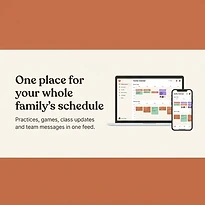
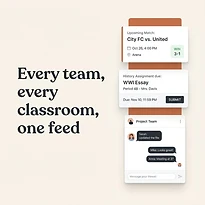
The goal is not to create more places to check. It is to organize schedules by purpose so the right information reaches the right people. A platform such as SynclyOne can support that approach by bringing family, school, and team commitments into one organized control center while preserving clear roles around shared information.
Choose permissions based on responsibility
Visibility and editing are different permissions. Someone may need to see an event without being able to move it, delete it, or invite other people. This distinction protects the schedule from accidental changes and makes ownership clearer.
For most households and groups, three access levels are enough: owners, editors, and viewers. Owners manage settings and membership. Editors can add or update approved event types. Viewers can check the schedule but cannot make changes.
Give owner access sparingly. In a household, this may be one or two adults who manage the main schedule. For a team, it may be the coach and an administrator. Owner permissions should not be handed out simply because someone is active in the group. The ability to change sharing settings affects everyone’s information.
Editor access should follow a clear job. A coach can update practice times. A school activity coordinator can add event details. A caregiver can add transportation plans. If several people can edit the same calendar, agree on simple conventions for event titles, locations, and updates. Otherwise, a shared calendar can become confusing even when privacy is set correctly.
Viewer access is valuable for children, relatives, volunteers, and participants who need reliable information but are not responsible for maintaining it. They can see what is happening without creating duplicate events or unintentionally changing plans.
Protect the details inside each event
Calendar privacy is not only about who has access. It also involves what is written in the event itself. A shared event title can reveal more than intended.
Instead of entering a detailed medical note, use a neutral title such as “Appointment” or “Unavailable.” Keep sensitive documents, diagnosis information, account numbers, and personal notes out of shared event descriptions. If a trusted person needs those details, send them through an appropriate private channel rather than placing them in a calendar that may later be shared with others.
Location details deserve the same care. A school gym or public field is usually fine to include in a team event. A home address, a private meeting location, or a child’s recurring route may need more limited visibility. Consider whether everyone who can view an event needs the precise address, or whether a general location is enough.
Recurring events also need attention. A weekly event created months ago may still carry old invitees, outdated notes, or a location that no longer applies. Review recurring school, family, and team events at the start of each season.
Review access when roles change
Calendar sharing is easy to set up and easy to forget. The most useful privacy habit is a short access review whenever a role changes.
Remove access when a season ends, a volunteer steps down, a caregiver arrangement changes, or a child leaves an activity. Update permissions when a parent, assistant coach, or family member takes on a new responsibility. This is not about distrust. It is basic schedule maintenance, much like updating an emergency contact or changing a pickup list.
It also helps to review integrations. Some calendars automatically share availability with video meeting tools, work accounts, school systems, or connected apps. These features can be helpful, but they may expose more information than expected if settings are left on by default. Check whether an integration shares full event details, only free and busy status, or nothing at all.
For households with children, decide how notifications should work as well. A child may need reminders for practice and assignments without receiving alerts for adult appointments. A caregiver may need transportation alerts but not every change to a work calendar. Thoughtful notifications support privacy and reduce unnecessary interruptions.
A simple privacy check before sharing
Before inviting someone to a calendar, pause for a quick check. Confirm the calendar’s purpose, decide whether the person needs viewer or editor access, and look at what event details are visible by default. Then consider what happens if that person forwards an invitation, changes devices, or no longer participates in the group.
The best setting depends on the situation. A small household may be comfortable sharing detailed schedules among two adults. A large sports team needs broader visibility but less personal information. A family coordinating care for an aging relative may need more access for a few trusted people and almost none for everyone else.
A well-managed shared calendar should make the next step clear: who needs to be where, when it happens, and who is responsible. Everything beyond that should be shared intentionally. When privacy settings match real roles, families and teams can coordinate with more confidence and less mental overhead.