
A shared calendar can reduce missed pickups, duplicate commitments, and last-minute group messages. But it can also expose more than people intended to share. Scheduling privacy is the practical middle ground: everyone sees the information needed to coordinate, while personal details remain limited to the right people.
For families, that might mean a co-parent can see that a child has an appointment without viewing the appointment notes. For a coach, it may mean players and parents see practice times and locations, while only staff can access volunteer assignments or internal planning. The goal is not to hide the schedule. It is to give every person the right level of visibility.
Why Scheduling Privacy Matters in Shared Planning
When calendars are scattered across text threads, school emails, paper notices, and separate apps, privacy can feel simpler because information is fragmented. The downside is constant follow-up: Who is taking the child to practice? Did everyone see the schedule change? Is that appointment a conflict or just a hold?
Putting schedules in one place solves the visibility problem, but it creates a new responsibility. A shared system should distinguish between information that helps people act and information that is personal, sensitive, or simply unnecessary for others to see.
This matters especially when a calendar includes children, medical appointments, school support meetings, addresses, travel plans, or team rosters. A family member may need to know that someone is unavailable from 3:00 to 4:00 p.m. They do not always need to know why. A team parent may need the field location and arrival time. They do not need the contact details or availability of every other family.
Good privacy settings reduce more than risk. They reduce friction. When people know what they can see, edit, and share, they are less likely to create side conversations, duplicate calendars, or avoid the shared system altogether.
Start With Visibility, Not Just Access
The simplest way to organize a shared schedule is to decide what each person needs to do, then give them visibility that supports that responsibility. Avoid treating every calendar member as an all-access administrator by default.
In a household, adults who coordinate transportation, childcare, and appointments may need broader access. Older children may only need to see their own activities and household events. A caregiver might need access during specific hours or for selected calendars only. The right setup depends on how responsibilities are actually shared.
For teams and activity groups, roles are usually clearer. Organizers need to create and update events. Coaches may need to communicate schedule changes. Parents and participants generally need to view event details and confirm availability. Volunteers may need limited access to the shifts they cover.
A useful rule is to share the minimum detail that allows someone to make the right decision. This does not make the system less helpful. It makes shared information easier to trust.
Separate event details by sensitivity
Not every event deserves the same level of detail. A school concert, practice, or family dinner can usually be visible to the appropriate group. A counseling appointment, legal meeting, or personal work commitment may be better labeled more generally, such as “Appointment” or “Unavailable.”
This approach protects privacy without creating a blank spot in the schedule. Other people can still plan around the time, understand transportation needs, and avoid conflicts. If a detail becomes relevant, it can be shared directly with the people involved rather than placed permanently on a group calendar.
Location information deserves the same care. Sharing a school gym or public field is often necessary. Sharing a home address, a child’s live location, or a private meeting location should be intentional. Consider whether the location is needed by every viewer or only by the person responsible for attending or providing transportation.
Set Clear Roles Before the Calendar Fills Up
Privacy problems often start quietly. One person creates the shared calendar, adds everyone quickly, and assumes the details can be sorted out later. Then the calendar becomes central to family or team operations, and changing access feels harder than setting it correctly from the start.
Before adding a full season of events or every household commitment, define a few basic roles. Most groups can work well with four levels of participation:
- Owners manage members, permissions, and the overall calendar structure.
- Editors add and update events within the calendars they manage.
- Viewers see the information shared with them but cannot make changes.
- Limited participants see selected schedules, events, or assignments only.
The labels can vary by platform, but the principle stays the same. Editing rights should be limited to people who are responsible for accurate information. If too many people can change event times or delete entries, the shared calendar becomes less reliable precisely when everyone depends on it.
For families, it can help to name a primary schedule owner even when responsibilities are shared. That person does not have to carry all the work. They simply maintain the structure, resolve duplicate entries, and make sure access stays current. For teams, this responsibility may belong to the coach, manager, or organizer.
Make Privacy Part of Everyday Scheduling
The best privacy setup is not a one-time project. Schedules change when a child joins a new activity, a caregiver changes, a season ends, or a new volunteer takes on a role. A short review at these transition points prevents old access from becoming a quiet problem.
Check who has access when you add a new calendar or group. Review permissions when a team season ends, when a participant leaves, or when a household arrangement changes. Remove access promptly when it is no longer needed, particularly for shared devices, former volunteers, or people who temporarily helped with transportation.
It also helps to establish a simple naming convention. Use clear event titles that tell viewers what action is needed without oversharing. “Maya - dentist - pickup at 4:30” may be appropriate for parents coordinating care. “Maya unavailable until 4:30” may be better for a broader household calendar. The difference is small, but it gives the organizer control over where personal context belongs.
Notifications need attention, too. A private event title can become visible on a lock screen, in an email preview, or through a shared tablet. If an event is sensitive, use a general title and reserve specifics for private notes or direct conversations. Privacy is not only about who can open the calendar. It is also about what appears when someone is standing nearby.
Scheduling Privacy for Schools and Teams
School and team calendars often involve many adults who have good intentions but different information needs. The organizer may need contact details, attendance information, and volunteer coverage. A parent may only need the date, time, location, equipment list, and a way to report an absence.
Keep group-facing schedules focused on the event itself. Avoid adding private student information, individual attendance explanations, or personal contact details to event descriptions. If an organizer must collect sensitive information, keep it out of the public calendar view and share it only through the appropriate private channel.
This is particularly important for youth activities. A calendar should make it easier for families to show up prepared, not create a directory of children’s routines and personal details. Even a familiar team group can change over time as families join, leave, or share devices.
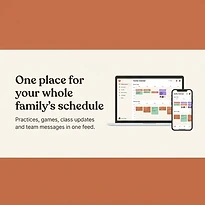
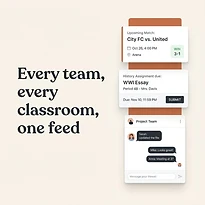
A platform such as SynclyOne can support this structure by keeping family, school, and team commitments organized in one operational hub while allowing organizers to think clearly about what belongs in each shared space. One central system is most useful when its calendars are purposeful, not overexposed.
Keep the System Useful Enough to Be Used
Privacy controls can fail in two opposite ways. Too little sharing leaves people guessing and pushes coordination back into text messages. Too much sharing makes people uncomfortable, causes unnecessary notifications, and can reveal details that were never needed for planning.
The right balance depends on the group. A two-parent household may choose broad shared visibility. A blended family may need more defined boundaries. A school club may need a public event calendar plus a private organizer calendar. The best structure is the one that matches responsibilities without asking people to explain or search for information they do not need.
A simple question can guide every event: Who needs this information to take the next right action? Share with those people, keep the details proportional, and revisit access as the group changes. That habit keeps a shared schedule calm, useful, and respectful of everyone it serves.